What is Fully Customizable Prospect Report Builder?
This premium feature is designed to give users full control over the appearance and content of their prospect reports. It enables agencies and locations to customize their report’s brand theme, header, introduction message, and footer sections, ensuring that every report reflects a distinct, professional identity. With an easy-to-use interface and live preview capabilities, you can build and refine reports that not only look great but also drive engagement.
UI Enhancements:
Streamlined Header
The previous sticky header that took up too much space is now fixed.
The header no longer obstructs content while scrolling.
Optimized Layout
We’ve removed empty white margins from both sides.
The report is now cleaner, more compact, and easier to navigate — with better content visibility and focus.
Note: This new UI is available only for Web Reports at this moment.
Key Benefits of Fully Customizable Prospect Report Builder
The prospect report builder offers key advantages that enhance both the aesthetic and functional quality of your client reports.
Branded, Professional Reports: Maintain a consistent, on-brand experience that reinforces trust with your clients.
Conversion-Ready Layouts: Highlight important CTAs and contact details in a layout designed for maximum impact.
Personalized Messaging: Tailor your content with niche-focused information to resonate with your audience.
Live Preview: Instantly see your changes and publish confidently without disruptive delays.
How to Access the Report Builder in Prospecting Tool
The Report Builder is available at both the Agency and Sub-Account levels for users with a Premium Prospecting Subscription. If you're on Basic Prospecting, you can explore the Report Builder, but saving changes is restricted.
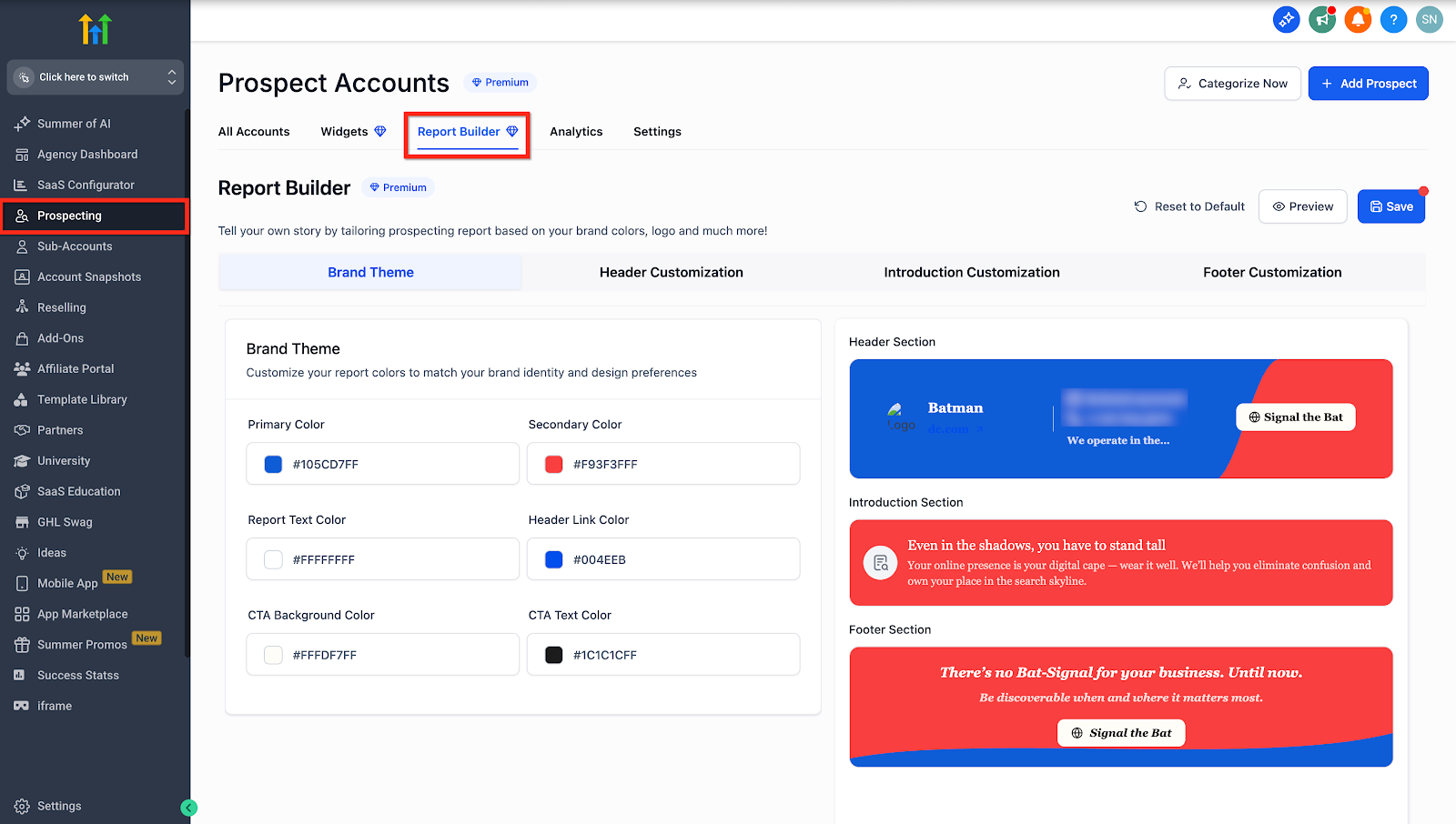
At the Agency Level
Log in to your Agency account.
Click on the Prospecting tab in the main navigation.
Select the Report Builder tab to begin customizing your reports.
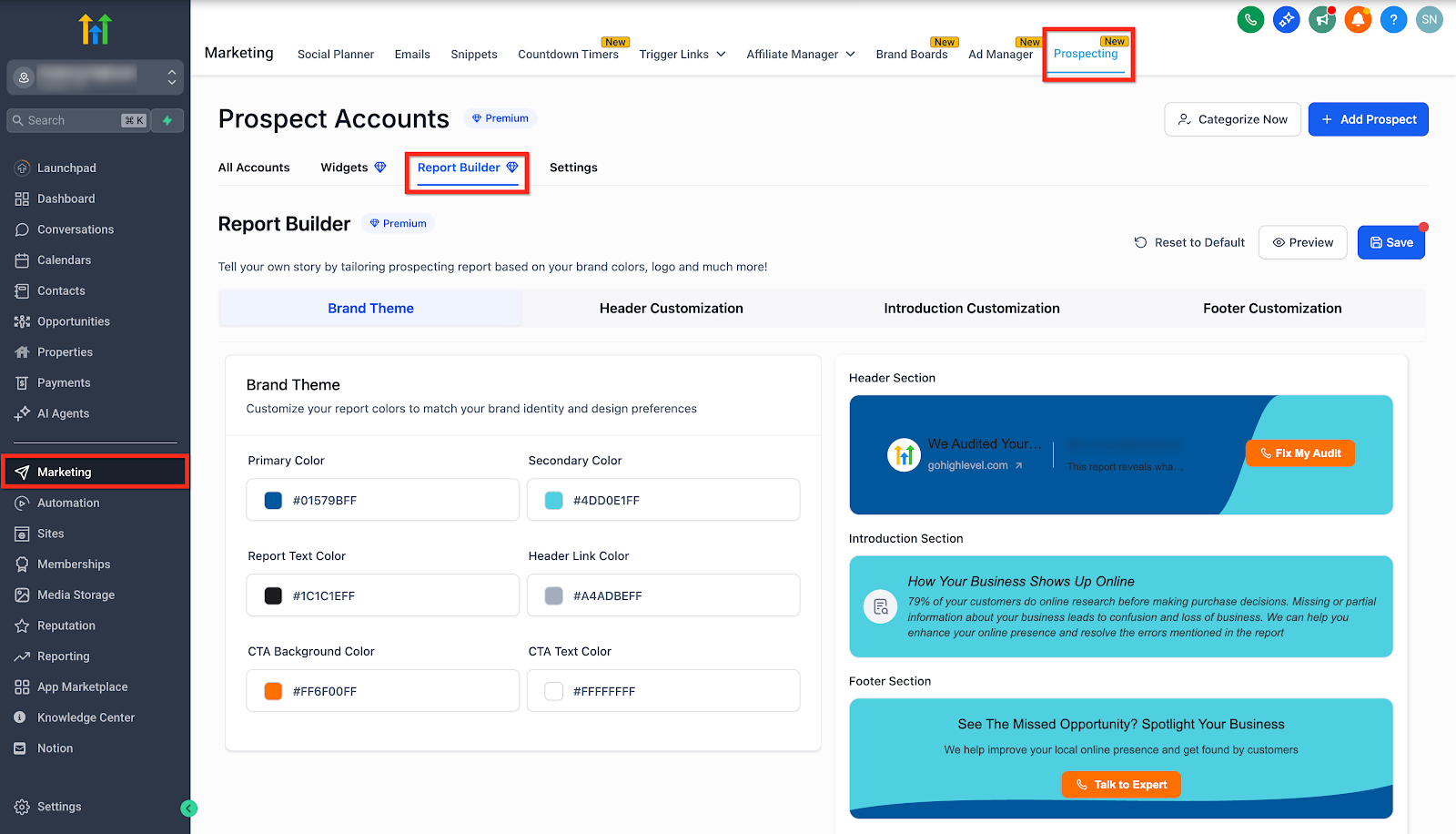
At the Sub-Account Level
Login to the sub-account.
Click on the Marketing tab.
Click on Prospecting.
Click the Report Builder tab to start building reports.
How To Use the Prospect Report Builder to Customize Your Report
The Report Builder is divided into 4 tabs, simply click a tab and start editing. You’ll see live previews on the right side.
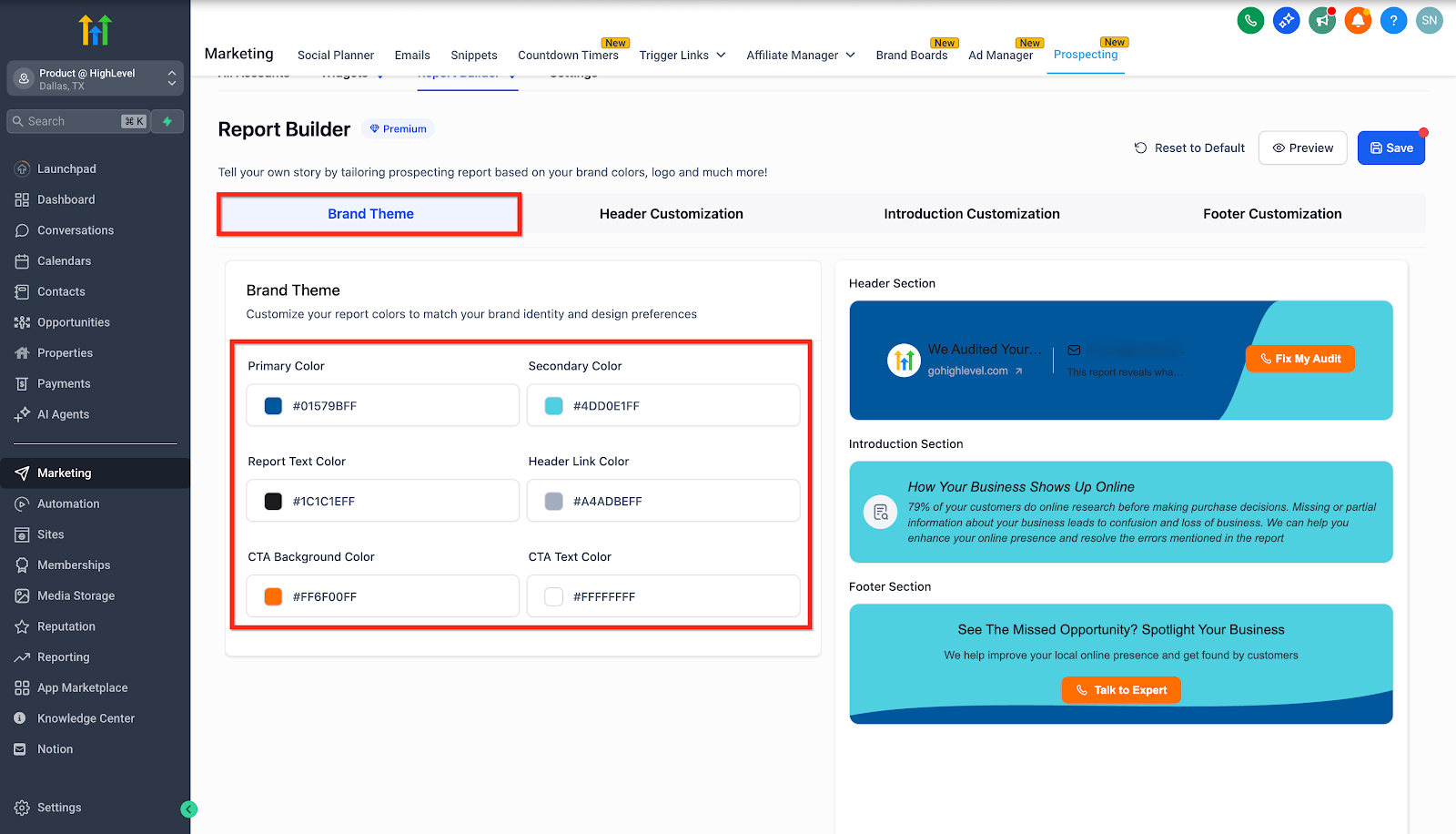
Brand Theme
This section allows you to define your brand's visual identity across the report. Use this to align your reports with your brand’s website, logo, or marketing assets.
You can customize:
Primary Color: The main background or base color used across the report (e.g., background of sections).
Secondary Color: A supporting accent color used subtly to complement the primary color.
Report Text Color: This controls the main text color inside the report content.
Header Link Color: Sets the color for any clickable links in the header (like your website URL).
CTA Background Color: Color of the Call-To-Action (CTA) buttons like "Connect Now" or "Contact Now".
CTA Text Color: The color of the text displayed inside the CTA button.
Header Customization
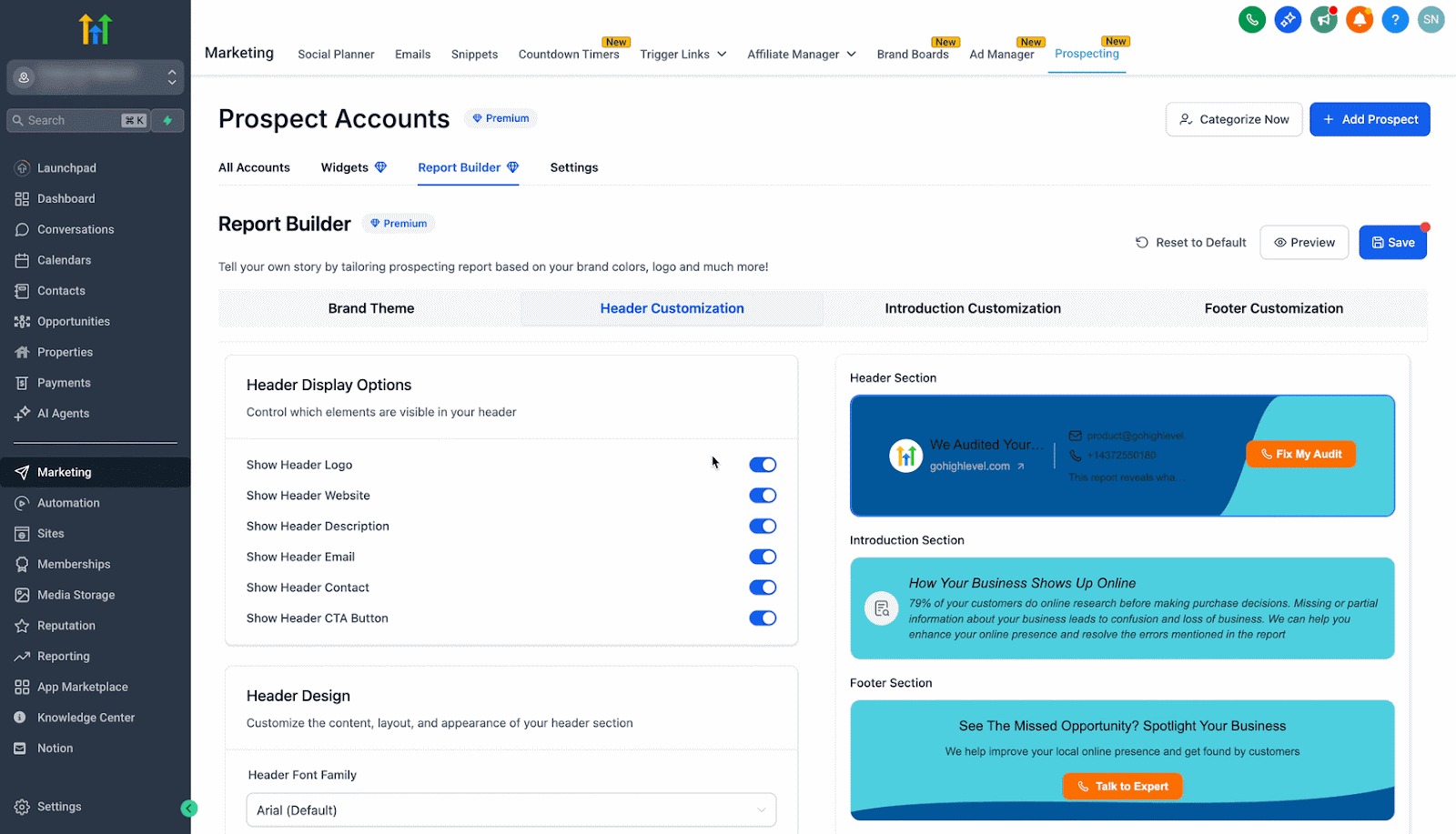
This section gives you control over what elements show up in the report header.
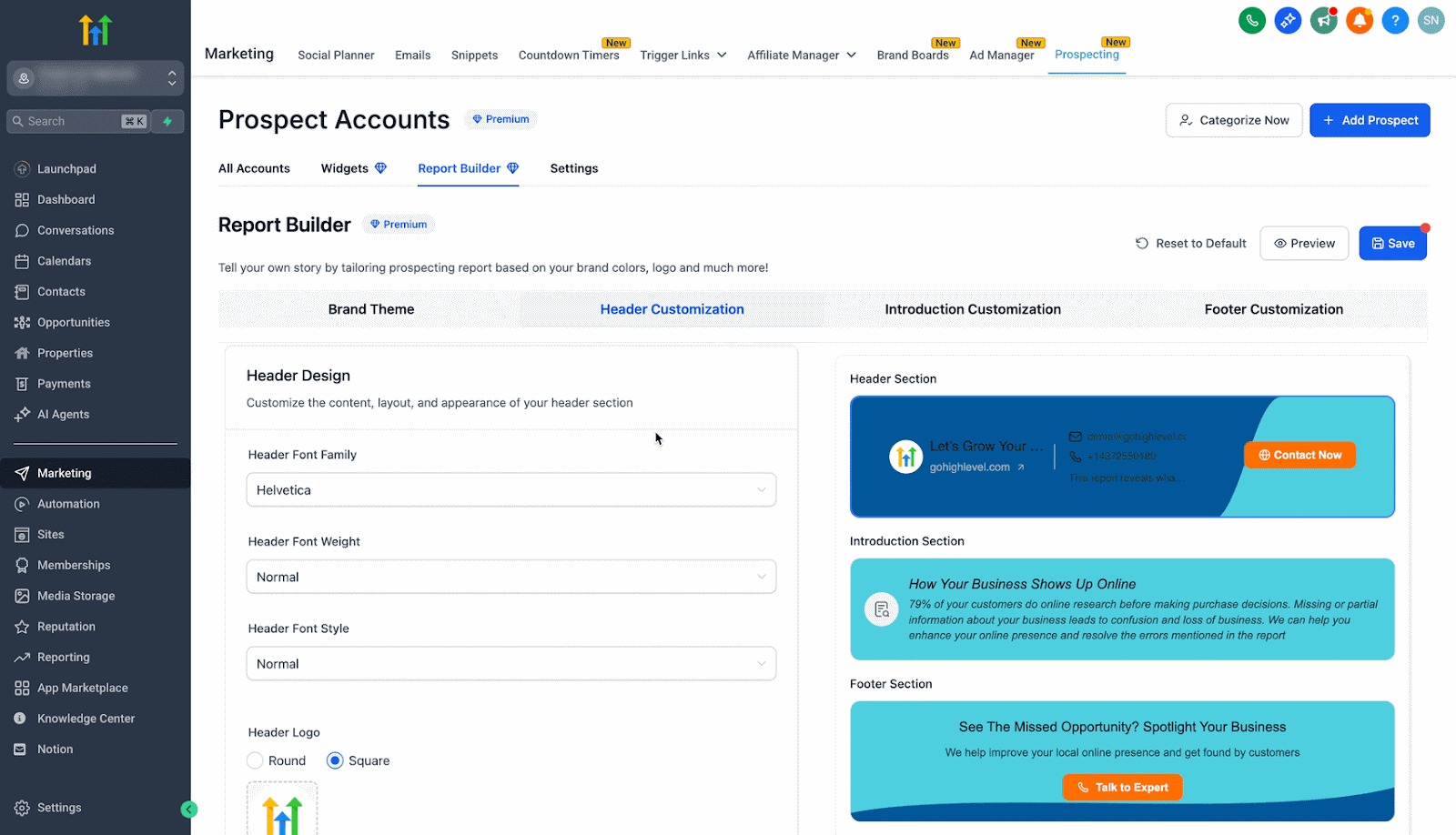
1. Header Display Options
Control which elements are visible in your header.
Show Header Logo: Toggle to display/hide your business logo.
Show Header Website: Show or hide your business website link.
Show Header Description: A short line like a tagline or supportive text (e.g., “Need help with your audit?”).
Show Header Email / Contact: Choose whether to show your contact email and phone number.
Show Header CTA Button: Enable or hide the main action button like “Contact Now.”
2. Header Design Options
Font Family: Choose the font type (e.g., Arial, Roboto).
Font Weight: Set font thickness (Normal, Medium, Bold).
Font Style: Regular or Italic.
Upload Logo: Recommended size 80x80px.
Header Title: Title text shown beside your logo.
Header Description: Supportive line for the title.
Header Website: URL displayed as a clickable link.
Header Email: Contact email address.
Header Phone Number: Your business contact number.
CTA Text: What the button will say (e.g., "Schedule Now").
CTA Action: Choose what happens when someone clicks:
URL: Takes prospects to your booking page or website.
Email: Opens an email draft to your contact.
Call: Dials your phone number (mobile devices).
3. Header Styles
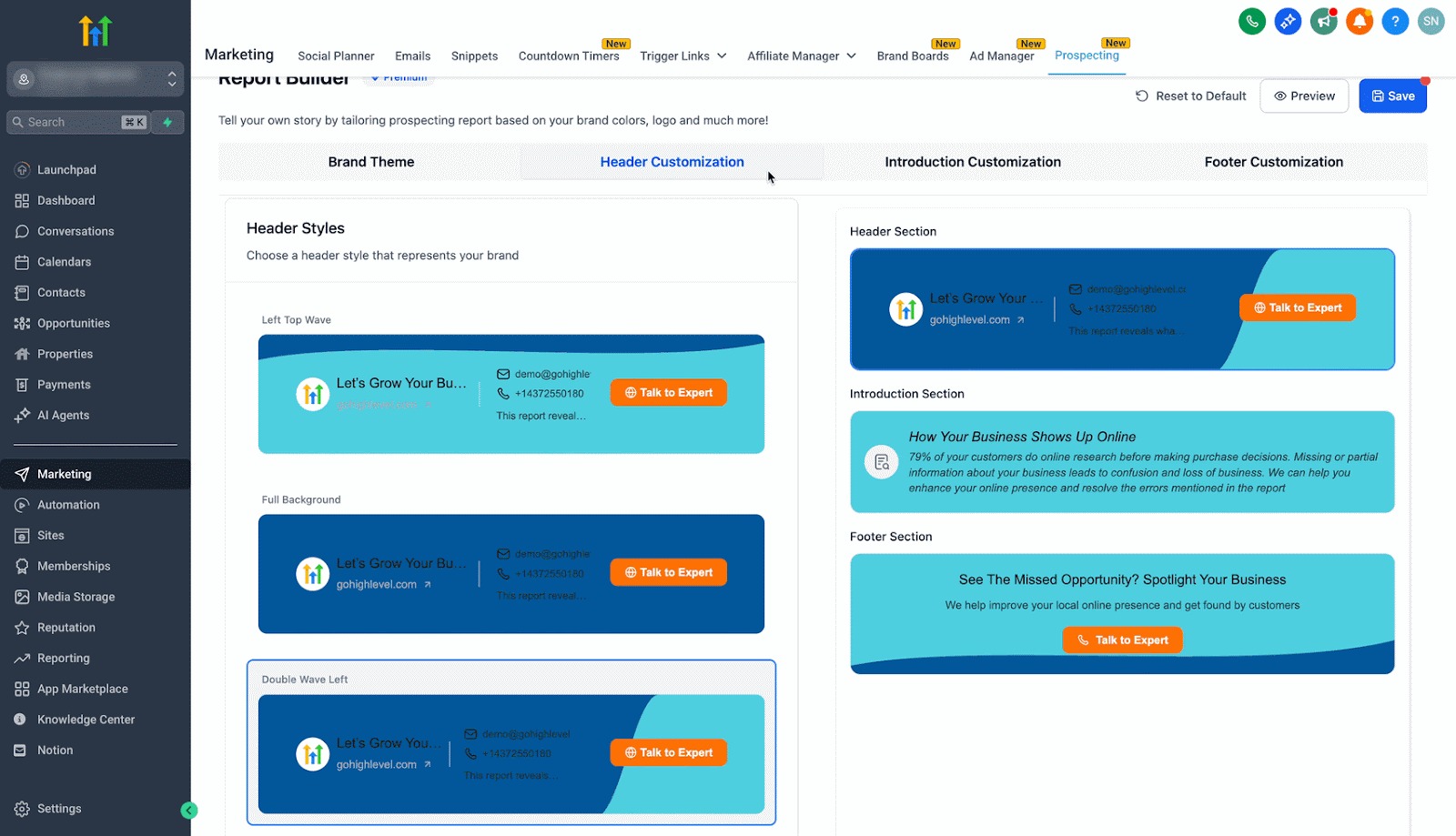
Choose a header style from the three available options.
Left Top Wave
Full Background
Double Wave Left
Introduction Customization
This section helps you configure the intro content shown below the header. Use this space to explain the value of the audit and how you can help fix identified gaps.
Show Introduction Description: Toggle to show/hide the entire introduction block.
Introduction Font Family, Weight, and Style: Customize how your intro paragraph text looks like.
Introduction Title: A short headline explaining what this section is about.
Introduction Description: Text for providing context, great for educating the prospect on what the report covers and why it matters.
Footer Customization
This section gives you control over what elements show up in the report footer.
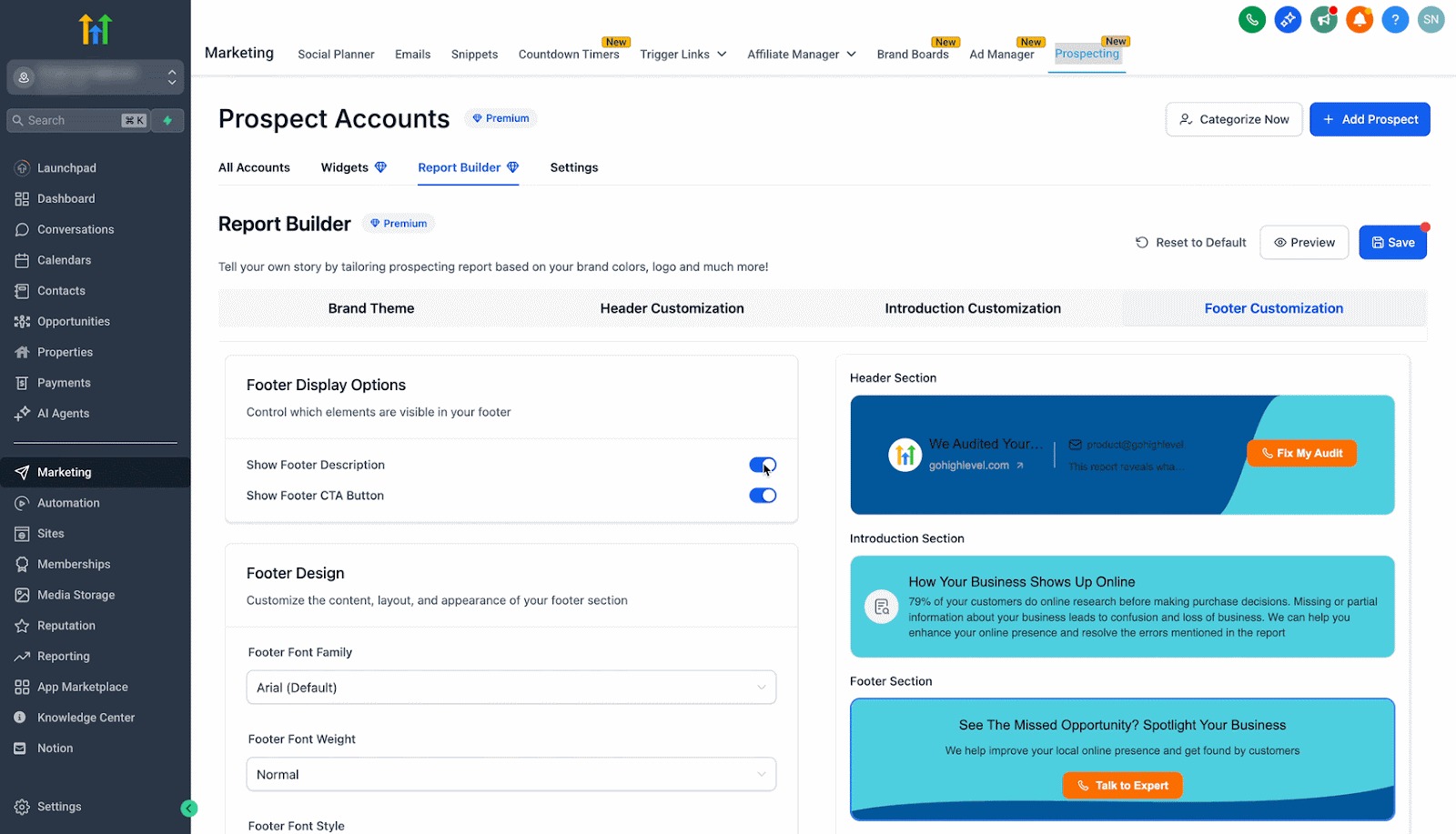
1. Footer Display Options
Control which elements are visible in your footer.
Show Footer Description: Toggle to show/hide the footer introduction block.
Show Footer CTA Button: Toggle to show/hide the footer CTA button.
2. Footer Design Options
Font Family: Choose the font type (e.g., Arial, Roboto).
Font Weight: Set font thickness (Normal, Medium, Bold).
Font Style: Regular or Italic.
Footer Title: Title text for your footer.
Footer Description: Supportive text under the title.
Footer CTA Text: What the button will say (e.g., "Talk to Expert").
Footer CTA Action:
URL: Takes prospects to your booking page or website.
Email: Opens an email draft to your contact.
Call: Dials your phone number (mobile devices).
3. Footer Styles
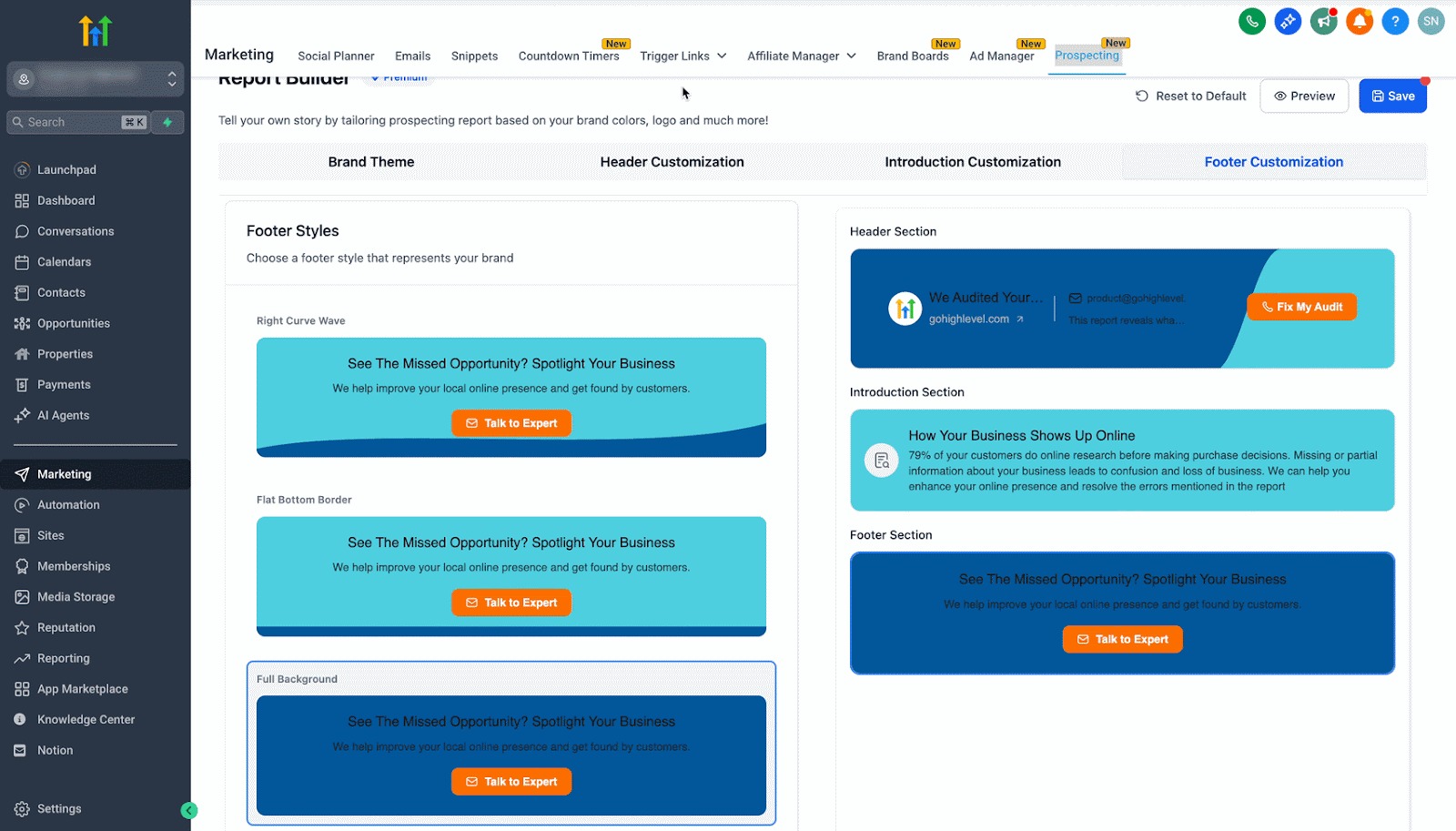
Choose a footer style from the three available options.
Right Curve Wave
Flat Bottom Border
Full Background
Preview & Save
Click Preview to open a view of the most recent unsaved version of the full report in a new tab.
Click Save to apply changes across all past and future reports.
You can also use Reset to Default to revert your customizations.
Frequently Asked Questions
Q: Who has access to the Prospect Report Builder?
The feature is available to all agencies and locations through Premium Access, with preview mode free for both.
Q: What does the Premium Subscription include?
The Premium Subscription unlocks full customization options, including brand theme, header, introduction, and footer settings along with the external report UI revamp.
Q: Can I see my changes in real-time?
Yes, the builder provides a live preview, ensuring you can see adjustments immediately before publishing.
Q: What improvements have been made with the external UI revamp?
The revamp offers a cleaner, modern layout with consistent iconography and improved text styling, making reports more visually engaging.
Was this article helpful?
That’s Great!
Thank you for your feedback
Sorry! We couldn't be helpful
Thank you for your feedback
Feedback sent
We appreciate your effort and will try to fix the article